Track employee attendance in real time
System Administration
34 Liked
2 minutes read
Time and Attendance App – Manager Guide

The new Meckano Time Tracking App now introduces a dedicated Manager Version, bringing all essential management tools straight to your mobile device. From now on, you can manage your team anytime, anywhere:
-
-
Approve or decline events and requests
-
Access reports, documents, and tasks with a single tap
-
Get a full overview of your team through a centralized, intelligent dashboard
-
This guide will help you navigate the Manager Mode, with clear, step-by-step instructions to make managing your team effortless and efficient.
Getting started with the Meckano app
-
- Download the Meckano app from the relevant store (App Store / Google Play).
- Open the app.
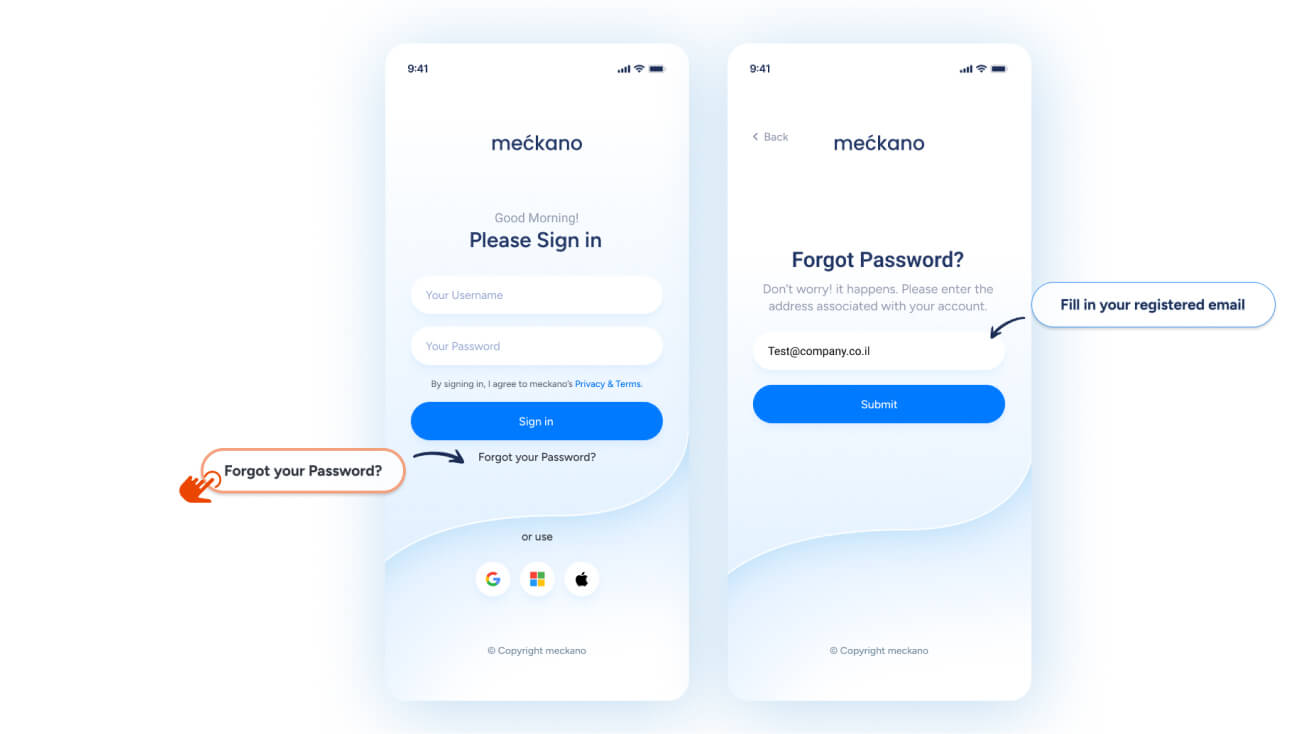
- On the sign-in screen, enter:
-
Username – the email address registered in the system
-
Password
-
-
Tap Sign In.
Alternatively, you can sign in using your Google, Microsoft, or Apple account, provided it matches the registered email address in the system.
Forgot you password?
No problem!
-
Press the “Forgot Password”.
-
Enter the email address registered in the system.
-
A link to reset your password will be sent to your email.
-
Introducing your upgraded dashboard
-
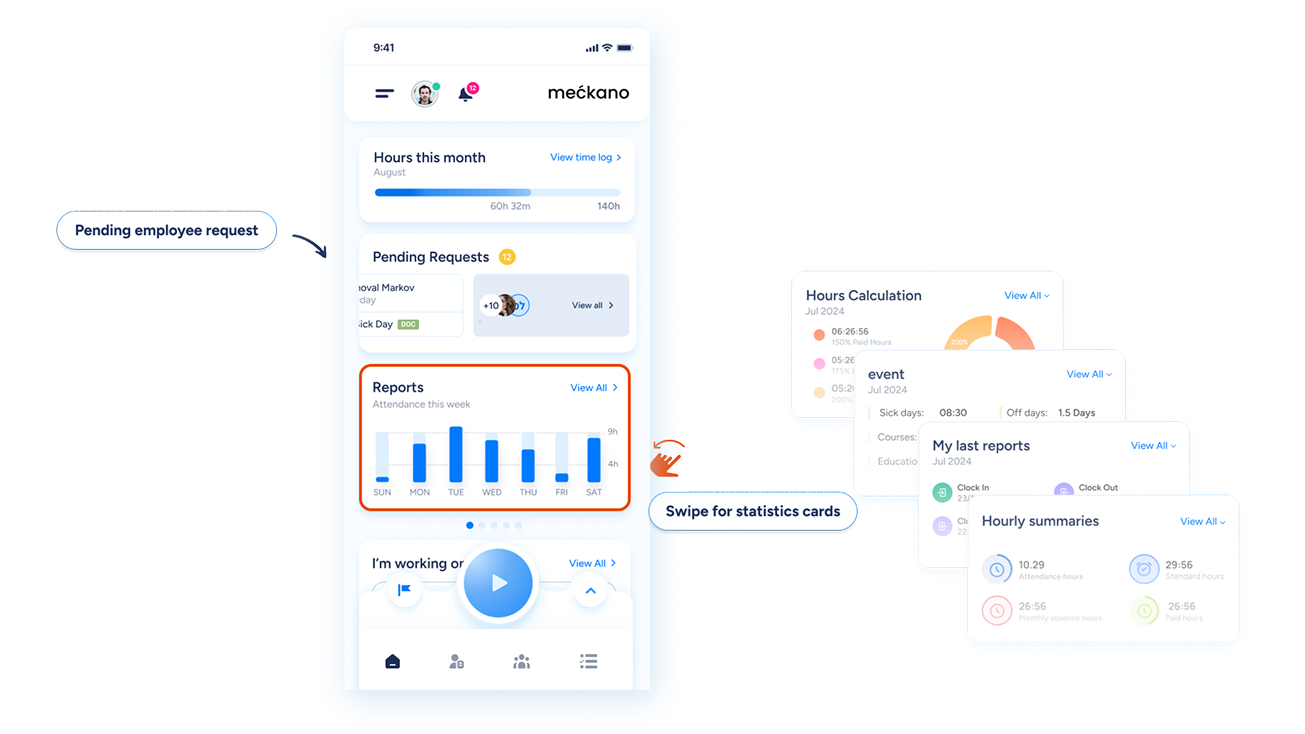
The main screen of the app has been upgraded, providing a smart dashboard that consolidates all your key information in one place.
Everything you need, right on the main screen:
Attendance reporting at your fingertips
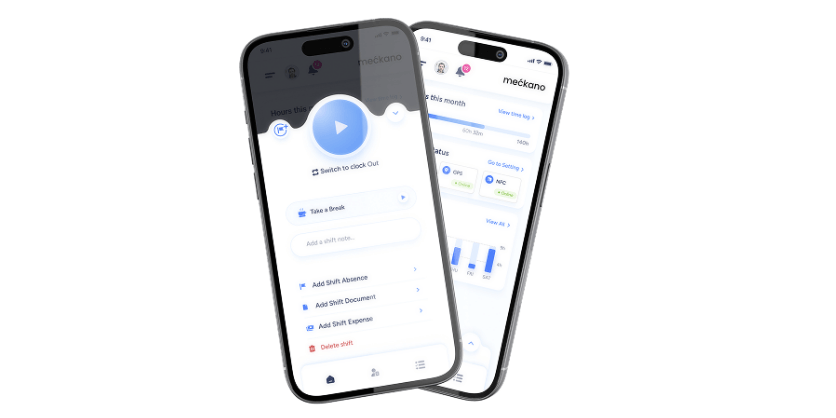
- To start your workday, tap the blue Play button at the bottom of the screen.
-
At the end of your day, tap the green Play button again to clock out.
-
-
Tap the Play button to start recording time for this task.
-
Once the task is complete, tap the button again to stop tracking and save your report.
-
At the top, you’ll find your monthly progress meter, allowing you to track total working hours against your monthly quota.
In the center, a dedicated card highlights all pending team event updates, ready for your approval or decline.
Additional information components
At the bottom, swipe left or right to browse through 5 dynamic info cards:
-
Weekly attendance graph: View a summary of your working hours for the past week.
- Monthly summary: Check your attendance data for the current month.
- Monthly hours pie chart: See how your work hours are distributed this month (e.g., 100%, 125%, 150%).
- Monthly events: Track absence events such as vacation or sick leave recorded this month.
- Last attendance reports: View your latest clock-in and clock-out entries.
Personal hub – manage your information
-
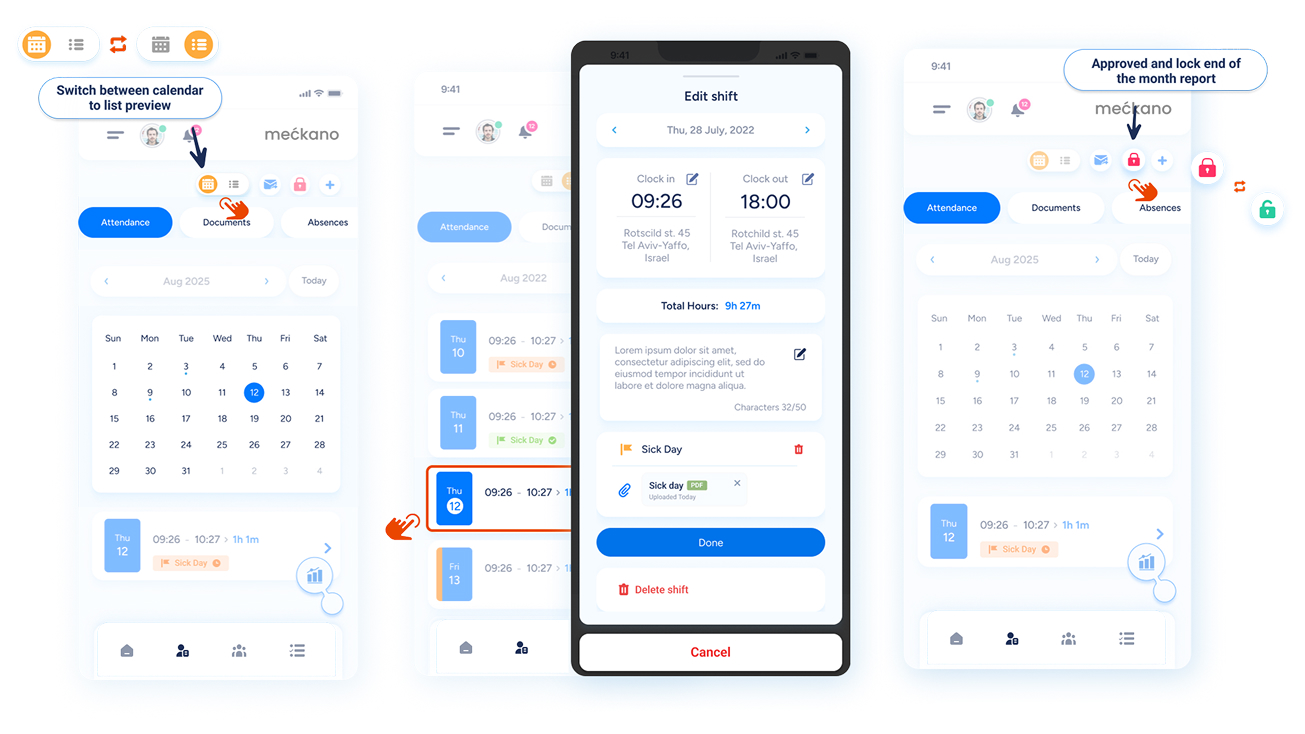
Your personal hub is the central place to manage all your information and related actions. The interface is organized into clear tabs, allowing smooth navigation between sections with a simple swipe left or right.
To access it, tap the report icon in the app’s bottom navigation bar.
Personal attendance report
-
Use the top of the screen to switch between list view, which details your daily logins, and calendar view, which displays your workdays for the month at a glance.
Edit a day: Press any day to view its full summary and update as needed.
Lock report: At the end of the month, after confirming all entries are accurate, press the lock icon to finalize your report and submit it for approval.
Documents tab
-
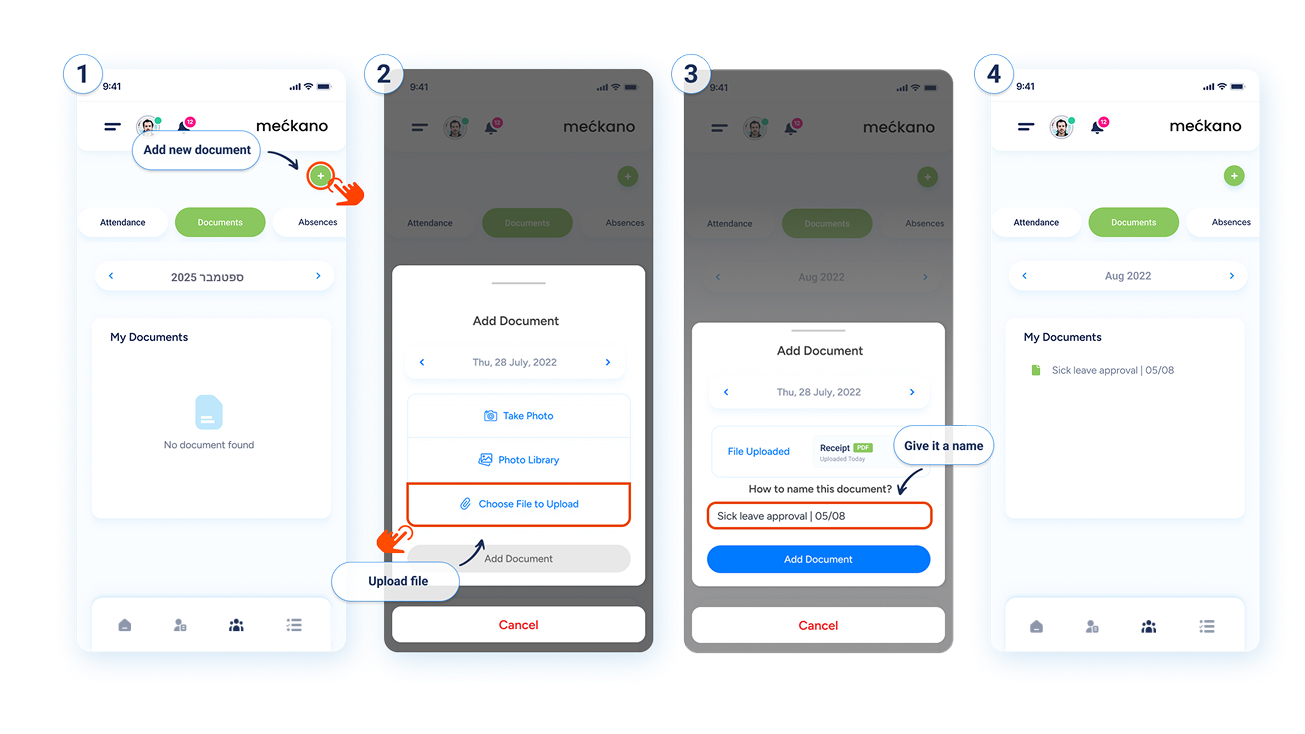
A single place to store and upload all your personal documents, such as sick leave certificates, reserve duty notices, or tax forms (Form 101).
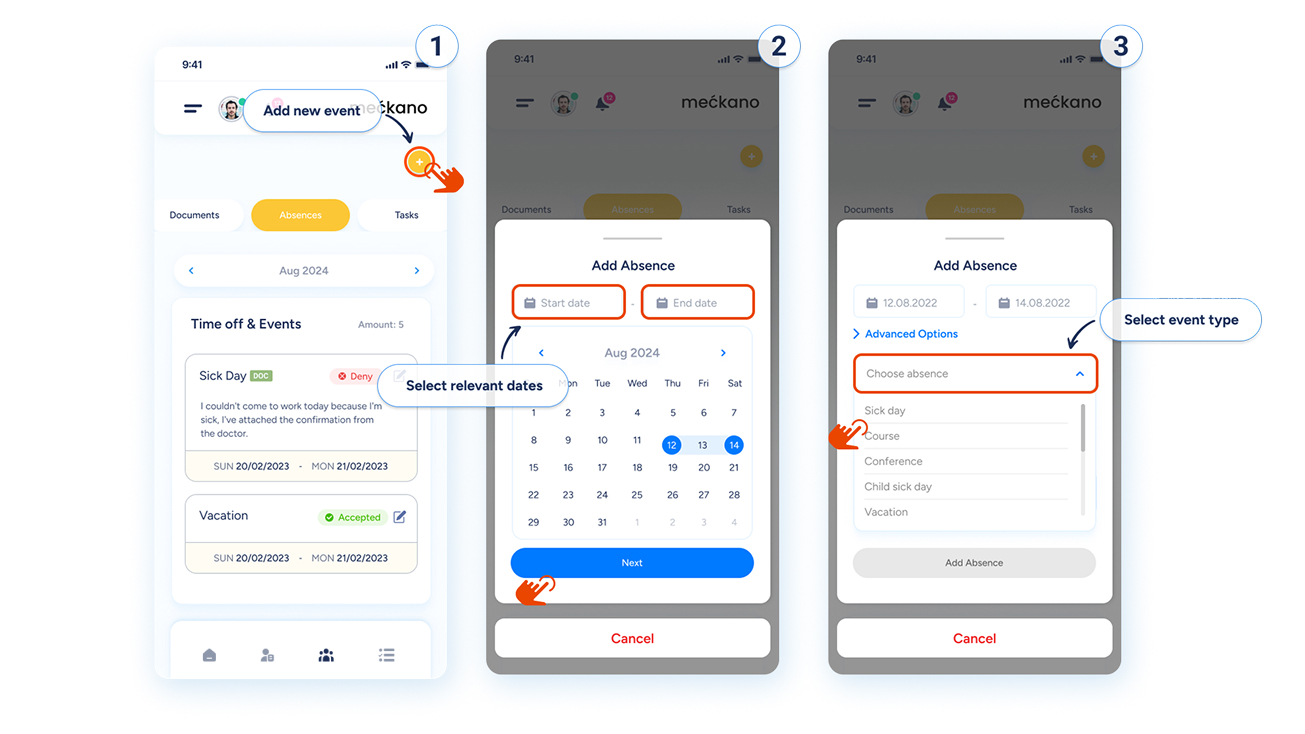
Events tab
-
Here you can log events such as vacation, sick leave, or reserve duty, and track their approval status.
To create a new event, press the plus (+) button in the top right corner of the screen.
- Select the type of event, for example “Vacation,” set the desired date range, and press Save.
-
The event will appear in your list, and its status will update once approved.
Tasks tab
-
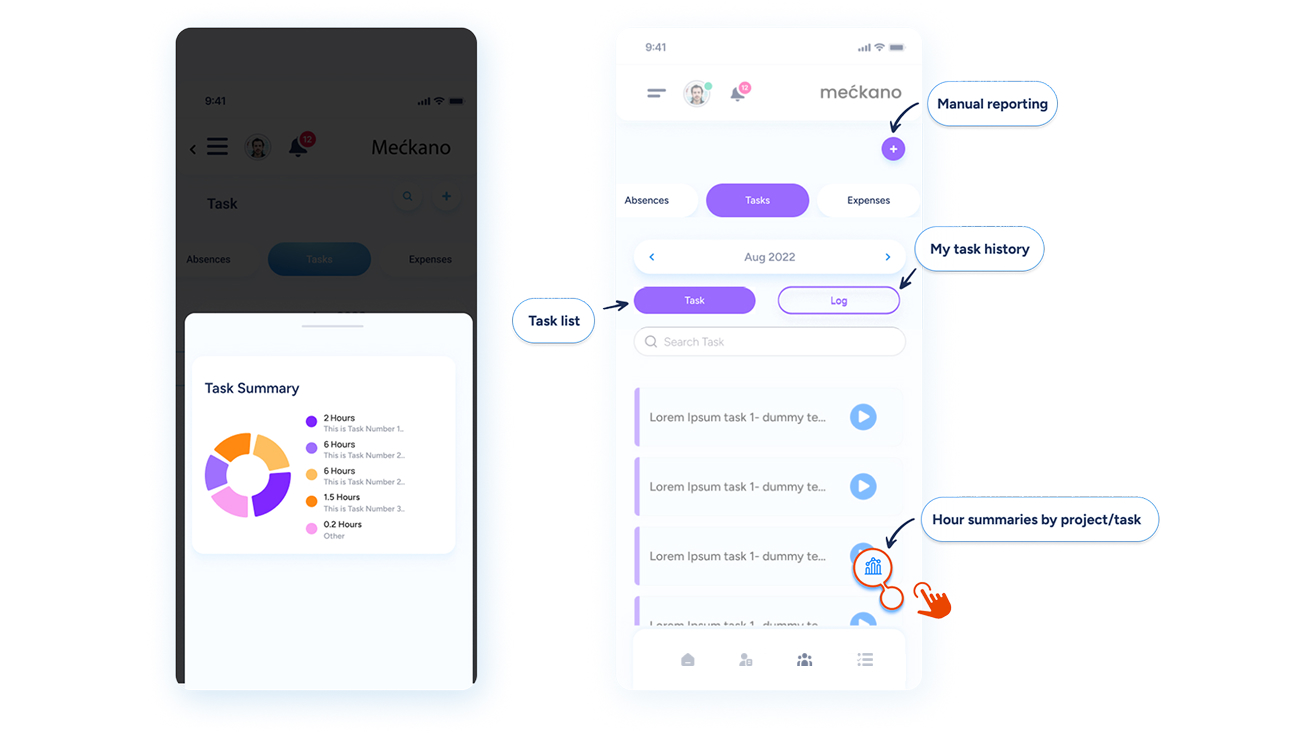
The Tasks tab displays all your task and project activity in one place.
From here, you can view your complete task reporting history, organized by month, and see detailed summaries of how your hours are distributed.
You can also manually add a new task report directly from this screen.
Expense reimbursement tab
-
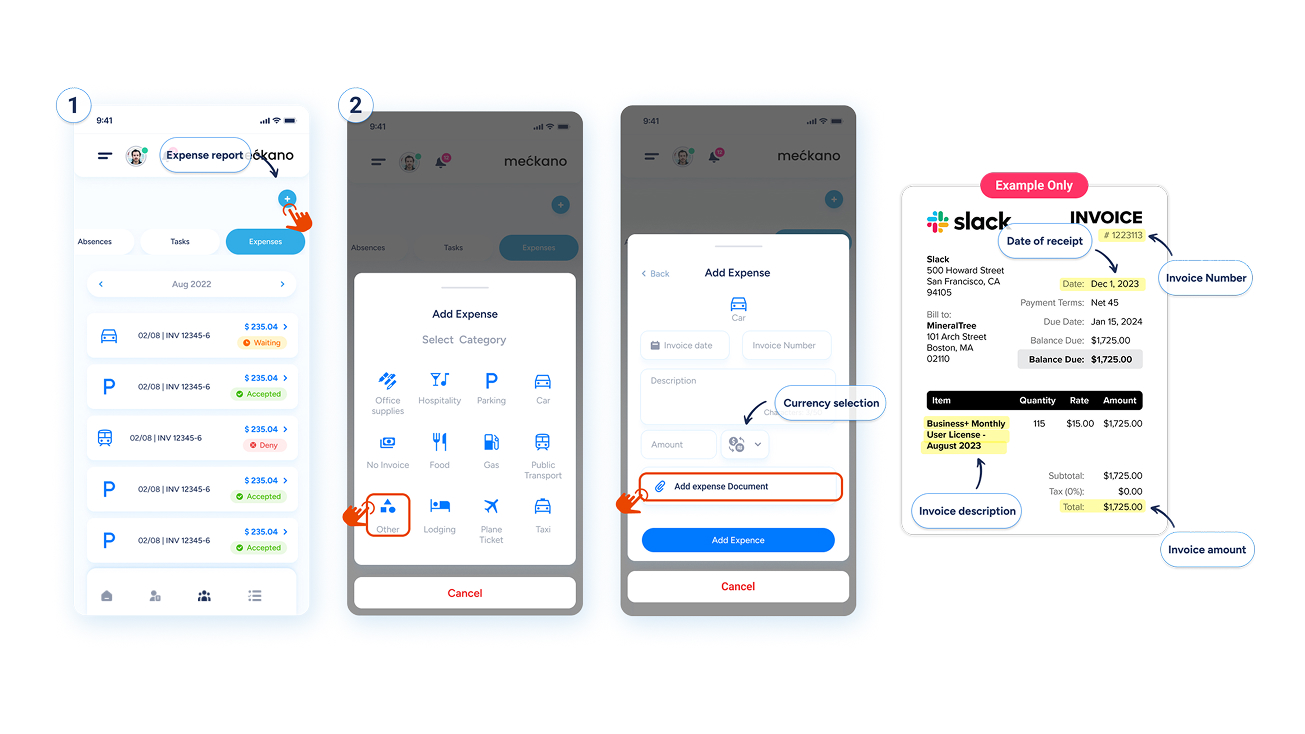
Use this tab to submit business expenses for reimbursement.
- To add a new expense, tap the plus (+) icon.
- Select the expense category (for example: fuel, parking, meals).
- Enter the date, expense description, total amount.
- Attach a photo of the receipt.
My team dashboard
-
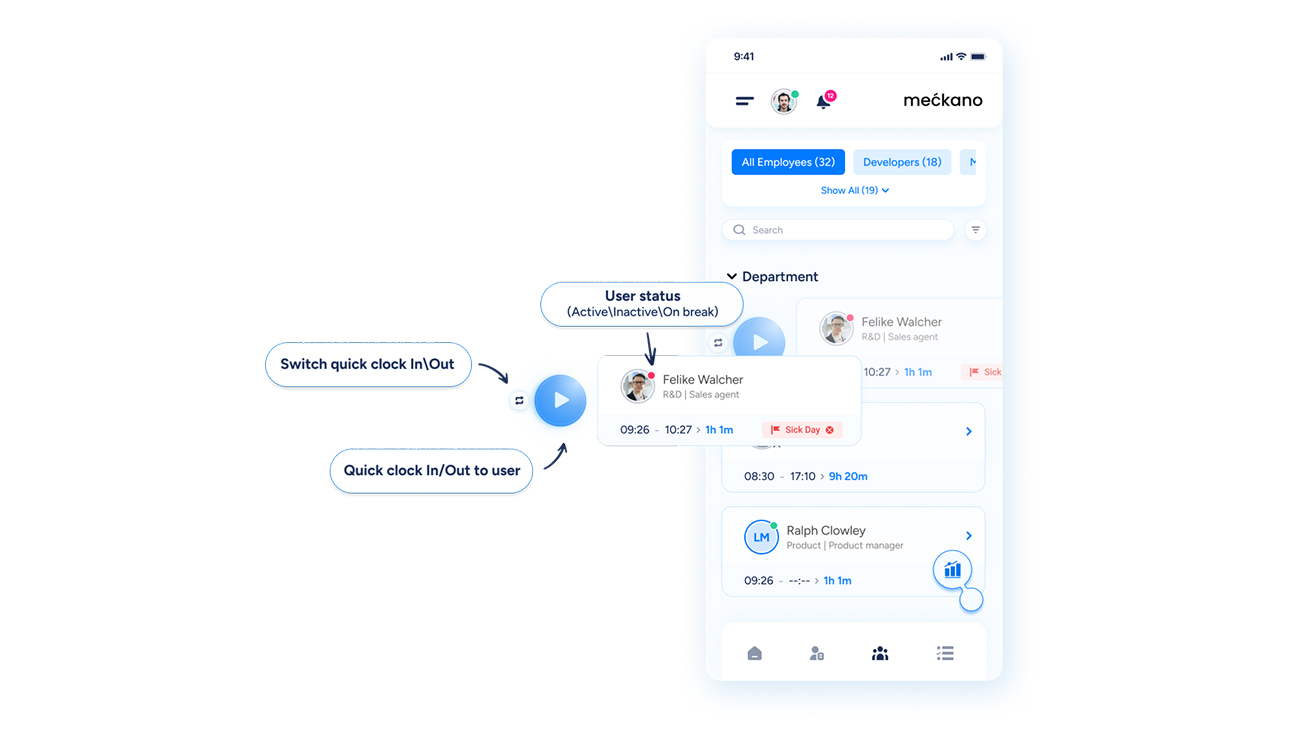
Tap the team icon in the navigation bar to open your management dashboard. Here, you can view all your team at a glance, organized by department, along with their real-time status:
- Green circle – on shift
- Orange circle – on break
- Red circle – off shift
To log attendance for an employee, simply swipe their name to the right to report shift start or end.
![]()
To-do list
-
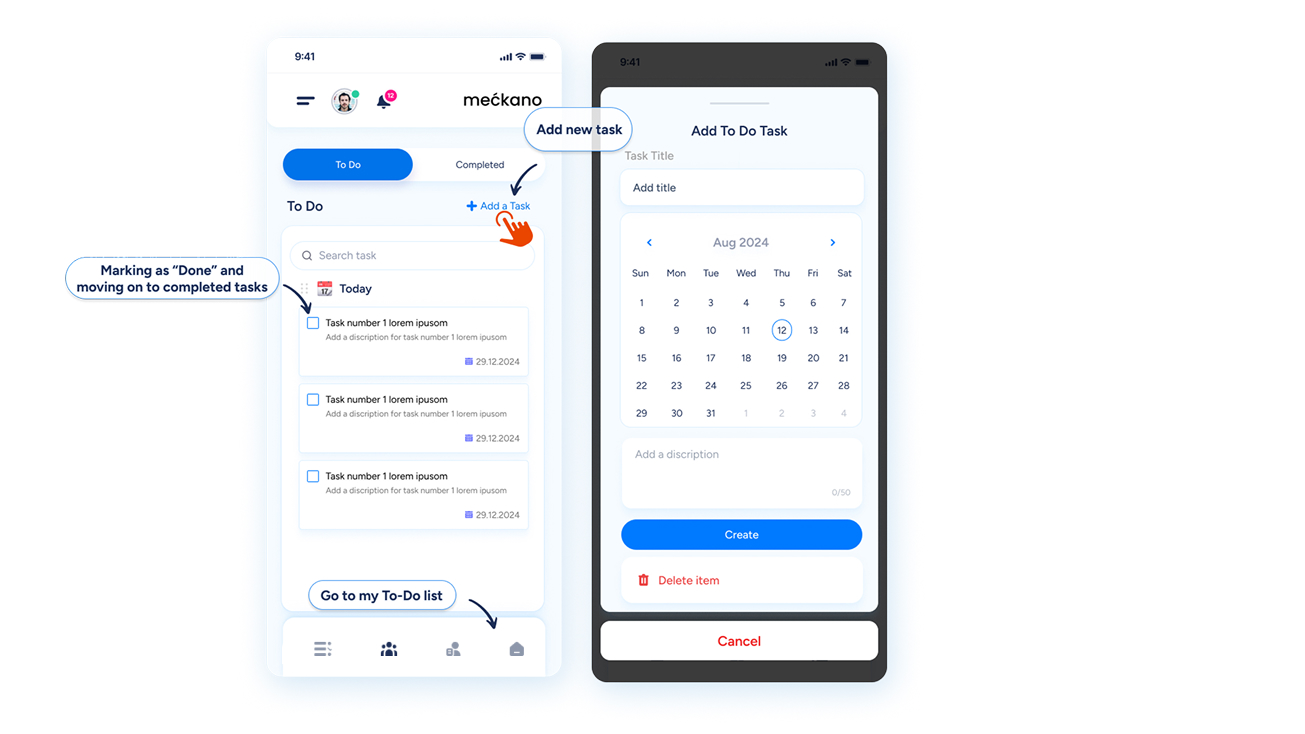
Tapping the list icon in the bottom navigation bar will take you to your personal daily to-do list management screen.
On this screen, you can add a new task, mark a task as completed by checking the box next to it, and view completed tasks by switching to the “Completed” tab.
Support and service
-
Meckano’s support team is here to assist you with any questions or issues.
If you encounter difficulties logging in, recording attendance, uploading documents, or performing any other action, don’t hesitate to reach out.
To contact our support team, click here.



Why not stay in touch?
Be the first to get our latest updates and solutions
